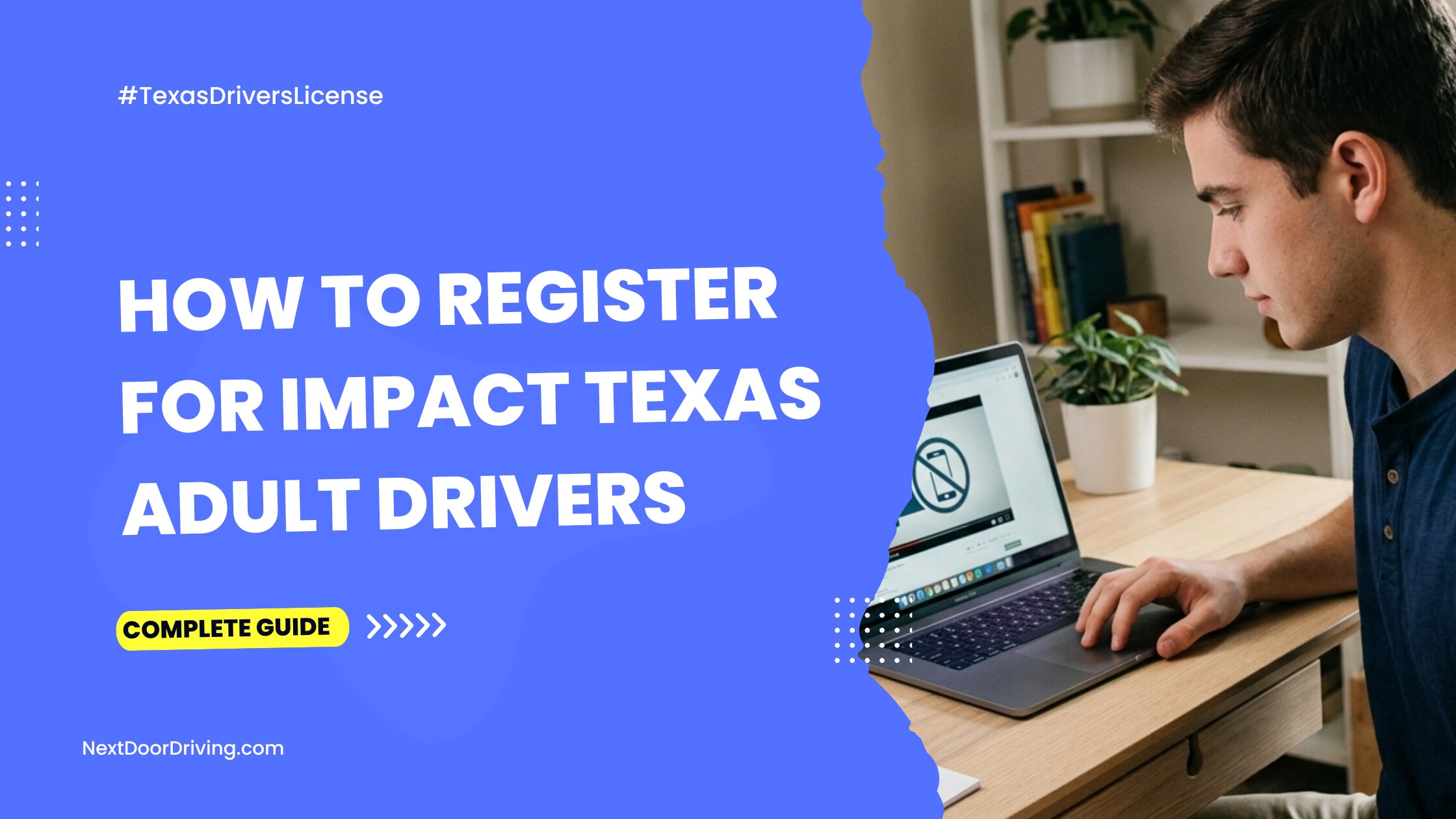
Quick Guide to Impact Texas Adult Drivers (ITAD)
- ITAD is a 1-hour video explaining the dangers of distracted driving.
- It is mandatory for new adult drivers in Texas.
- ITAD is taken after driver’s ed and before the road driving test.
- Your ITAD certificate is valid for 90 days, and you need it to take the road test.
Instructor tip: Before you register for the ITAD program, make sure you have finished your NextDoorDriving adult driver’s ed course and received your Certificate of Completion (Form ADE-1317). You will not be able to register for the ITD course without this certificate!
Who Needs ITAD?
Anyone 18 or older who is applying for a first-time Texas driver’s license is required to view the ITAD course. This includes new drivers over the age of 25 who aren’t required to take driver education.
If you are getting a Texas license and do not have to take the road test, you can skip the ITAD step. This road test exemption usually applies for new residents surrendering a valid, unexpired out-of-state license. Military personnel, recently discharged veterans, and government officials may also qualify for a road test waiver.
Note for Teens (15–17): New drivers under 18 will take a teen-specific Impact Texas Teen Drivers (ITTD) course. The rules are essentially the same for the ITAD and ITTD courses.
Before Registering for ITAD
Before registering for ITAD, make sure that you are truly ready. It’s important that you are aware of the following rules:
- Finish driver’s ed first.
If you’re between 18 and 24, you need to finish your 6-hour adult driver education course before registering for ITAD. The state system tracks the dates, so if you watch the ITAD video before finishing your driver’s ed, the DPS will reject your certificate and you will need to watch the video again. - Time it right.
Don’t watch the ITAD video too early, since your ITAD certificate is only valid for 90 days. Because DPS test appointments can book out weeks and months in advance, plan to schedule your driving test first. Then, watch the ITD video close to your road test date so your certificate is current.
Step-by-Step Guide to ITAD Registration
Registering for the ITAD course is fairly simple, but you will need to enter your details accurately so the system generates your certificate correctly. Follow these steps to sign up:
- Step 1: Head to the Texas DPS ITD Portal
Go to the official Impact Texas Website and look for the “Register” button on the right-hand side of the page to get started. - Step 2: Set Up Your Account
The first part of the form will ask you to create your login credentials and fill out your personal profile. You should:
- Use a valid email address: You must provide a working email address to register. This email address will serve as your account username, and your ITD completion certificate will be delivered there.
- Create a password: Choose a secure password to complete your login setup.
- Fill out your personal details: Enter your name, date of birth, and info exactly as they appear on your legal identity documents (like your birth certificate, passport, or residency paperwork). Any typos or mismatches now could delay your license later.
- Step 3: Link Your Driver’s Ed Certificate
To connect your account to your adult driver education certificate, use these settings on the form:
- Driver Education Type: Under “Driver Education Type,” Select “Driver Education School.”
- TDLR Number: Enter the Driver Education School Number that appears on your Next Door Driving course certificate: C3424. The website asks for the “TDLR Number,” but this is a mistake. You may also start typing in the name of the school (Next Door Driving INC) and the system should display the name and number.
- ADE/DE Control Number: Look at the top right corner of your driver’s ed certificate. You will see a number printed after the letters “ADEE.” Type in only the digits of this number. You do not need to enter the “ADEE” prefix, as this is always the same.
Once you double-check your information and save the form, your account is active and you are ready to start the video!
Note for 25+: If you did not take driver education, check this box: “Check if 25 and over and never taken a driver education course (within the last 2 years).”
Note for Teens: If you took the ITTD teen course, the registration process is similar but you will provide your teen driver’s ed certificate number (Form DE-964) and your Learner License (learner’s permit) number.
Completing the ITAD Requirement
Once registration is out of the way, crossing the finish line is a quick, three-step process:
- Watch the video modules: The ITAD video is broken into three modules. You must watch each part in full to move to the next one.
- Print your certificate: Once you finish the third module, your official ITD completion certificate will be emailed to the address on file and available for download on your profile dashboard. You must print the certificate and bring this paper copy to your road test. Digital versions on your phone will be rejected at the testing site.
- Pass your road test: Your ITAD certificate expires after 90 days, so pass your behind-the-wheel test before that window closes, or you will need to re-register and take the ITD course again.
Common ITAD Registration Problems
Even though the ITD portal is fairly basic, small technical mistakes can halt your progress. Here are some common snags and how to deal with them.
- Invalid certificate number error: A common issue occurs when users type the “ADEE” prefix into the ADE/DE Control Number box. The system is coded to accept numbers, so if you type the “ADEE,” you will get an error message.
- Missing school name bug: Trying to input a driving school’s TDLR license number often causes the website to glitch (not your fault—the website does not make this part clear!). To prevent this, change the registration type to “Driver Education School” and simply type out “Next Door Driving INC.” Let the system auto-populate your provider’s info from the database.
- Mobile device incompatibility: The Impact Texas portal does not fully support mobile browsers. If you try to register or watch the videos on a smartphone or tablet, the system could glitch or your progress may not save. Always register and watch the video on a desktop or laptop computer with a secure internet connection to avoid issues.
Need Help?
Because the Impact Texas portal is owned and managed by the state, individual driving schools cannot log in to fix account or certificate errors. If you run into technical issues, contact the Texas DPS ITD support team directly:
- Email: ITD@dps.texas.gov
- Phone: 512-424-5623 (Mon–Fri, 8:00 AM to 6:00 PM CST)
- After-hours hotline: (855) 481-7070